
Getting started
StoryShelf is a self-hosted visual testing platform for Storybook. You run one server, point your CI at it, and review pixel diffs in the browser.
You need a Storybook with a .storybook/main.* file, and Node.js 24 or later on the machine that will run the server.
1. Scaffold a server
Section titled “1. Scaffold a server”Use the CLI to scaffold a new server project:
npx storyshelf server initpnpx storyshelf server inityarn dlx storyshelf server initIt asks for a project name and directory, then which database (SQLite by default), storage (local filesystem by default), auth (none by default), and git provider (GitHub, GitLab, or none). It generates src/index.ts, a package.json with the matching adapters and a tsconfig.json for your editor.
2. Start the server
Section titled “2. Start the server”cd my-storyshelfnpm installnpm startThe server listens on http://localhost:3000.
3. Initialize Storybook and create a project
Section titled “3. Initialize Storybook and create a project”Initialize the client config and create a project. Creating a project needs a site-admin token when auth is enabled.
Write .storybook/storyshelf.json (prompts for anything you leave out):
npx storyshelf init --url http://localhost:3000 --slug my-design-systempnpx storyshelf init --url http://localhost:3000 --slug my-design-systemyarn dlx storyshelf init --url http://localhost:3000 --slug my-design-systemOr create the project on the server and write the config in one step:
npx storyshelf create --url http://localhost:3000 --name "My Design System" --token $STORYSHELF_ADMIN_TOKENpnpx storyshelf create --url http://localhost:3000 --name "My Design System" --token $STORYSHELF_ADMIN_TOKENyarn dlx storyshelf create --url http://localhost:3000 --name "My Design System" --token $STORYSHELF_ADMIN_TOKENcreate prints the project slug and a CI token, and writes .storybook/storyshelf.json.
4. Upload a build from CI
Section titled “4. Upload a build from CI”With .storybook/storyshelf.json present, upload flags can be omitted, and running storyshelf with no command defaults to upload:
npx storyshelf upload --token shelf_xxx --sha "$GITHUB_SHA" --branch "$GITHUB_REF_NAME"pnpx storyshelf upload --token shelf_xxx --sha "$GITHUB_SHA" --branch "$GITHUB_REF_NAME"yarn dlx storyshelf upload --token shelf_xxx --sha "$GITHUB_SHA" --branch "$GITHUB_REF_NAME"Or, when the config file and environment are in place, simply:
npx storyshelfpnpx storyshelfyarn dlx storyshelfExplicit flags always work too:
npx storyshelf upload --url http://localhost:3000 --slug my-design-system --token shelf_xxx --sha "$GITHUB_SHA" --branch "$GITHUB_REF_NAME"pnpx storyshelf upload --url http://localhost:3000 --slug my-design-system --token shelf_xxx --sha "$GITHUB_SHA" --branch "$GITHUB_REF_NAME"yarn dlx storyshelf upload --url http://localhost:3000 --slug my-design-system --token shelf_xxx --sha "$GITHUB_SHA" --branch "$GITHUB_REF_NAME"StoryShelf renders every story server-side and diffs it against the branch baseline. Without .storybook/storyshelf.json, running storyshelf just shows help pointing you to init.
For a complete pipeline, see CI setup.
5. Review
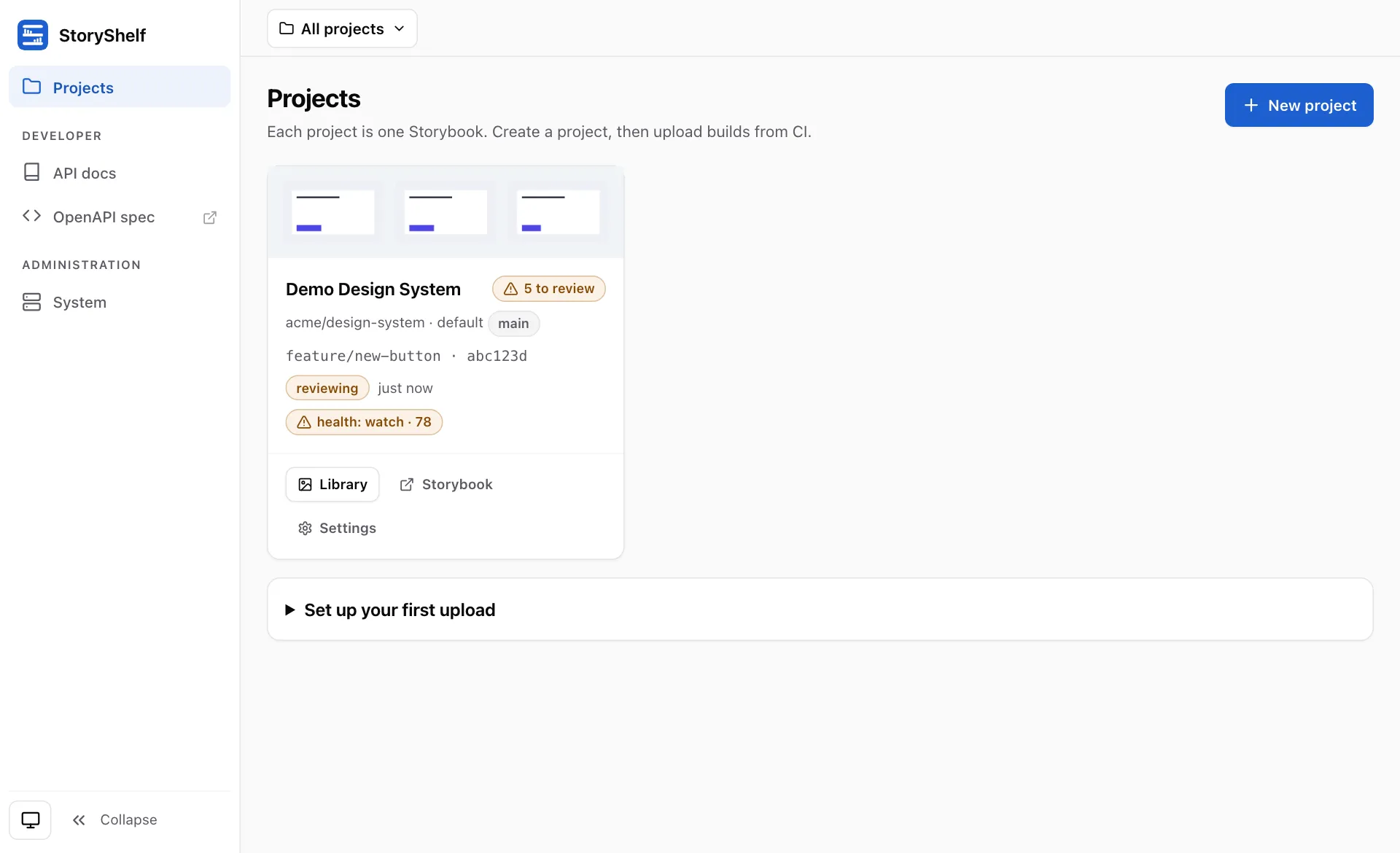
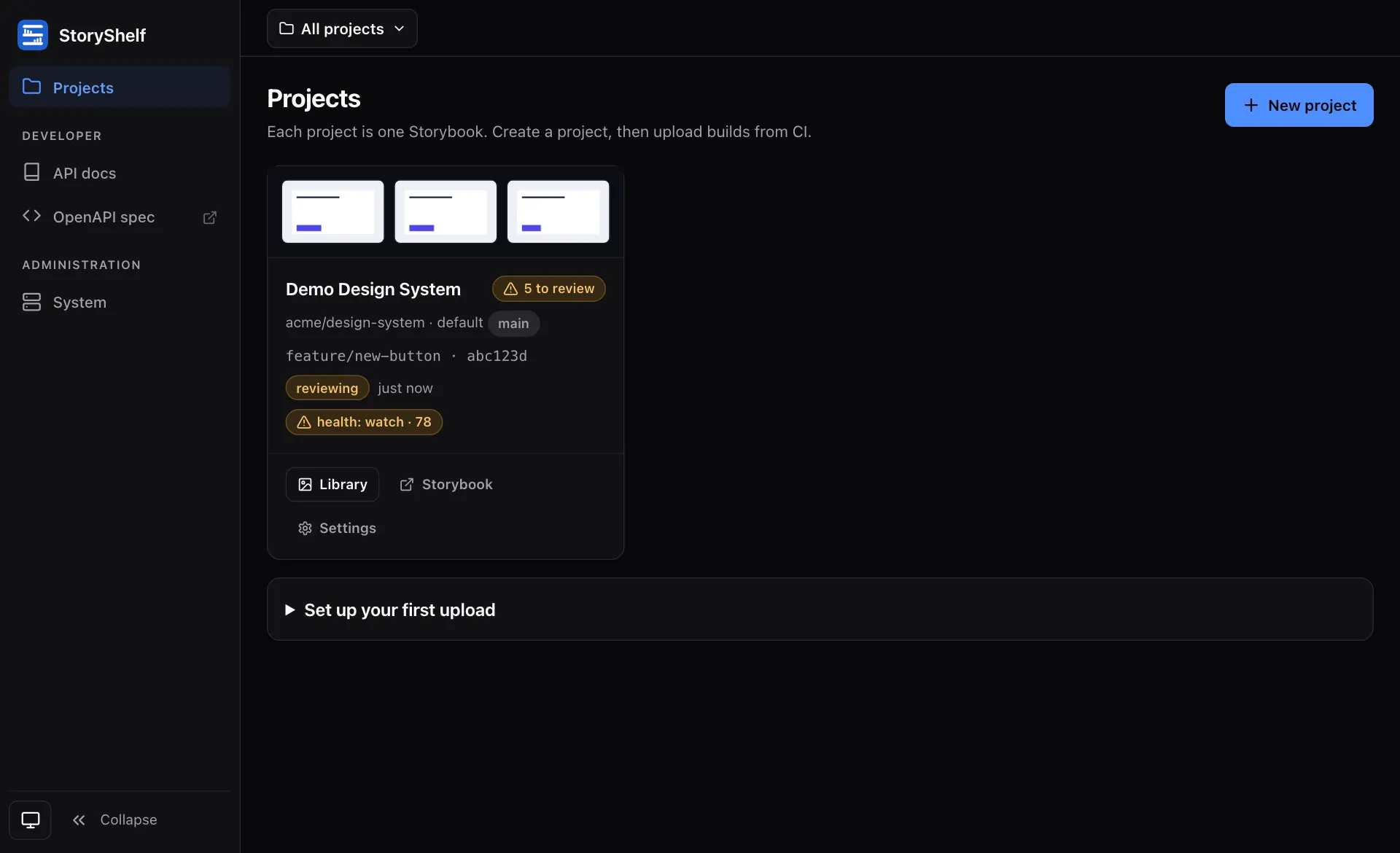
Section titled “5. Review”Open the project in your browser. A build that needs attention shows N to review on its project card; open it, and choose Review diffs for the review workspace: a filmstrip of changed stories, baseline, current and diff side by side (or swiped, blended or flipped), and Approve / Reject with the keyboard.
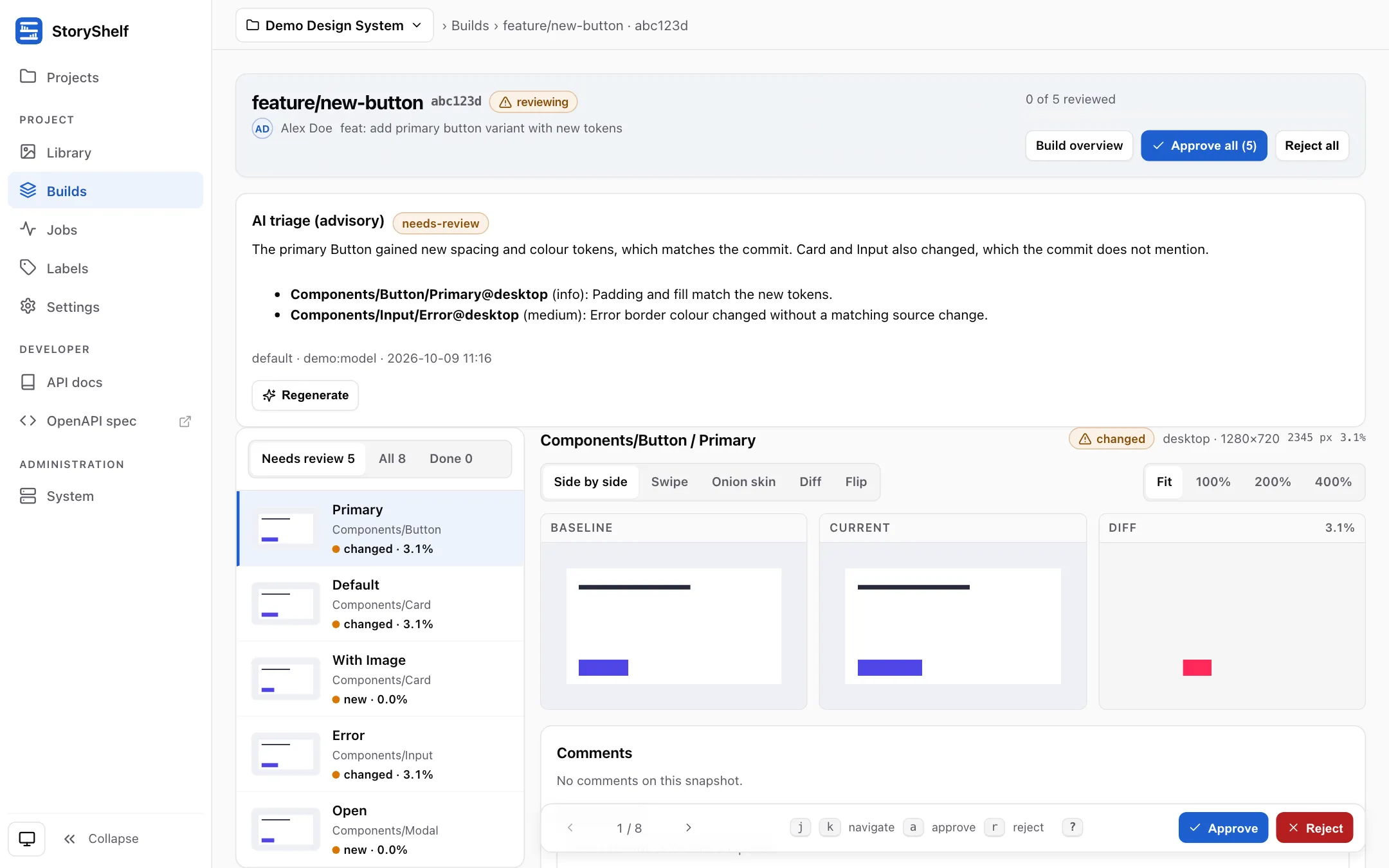
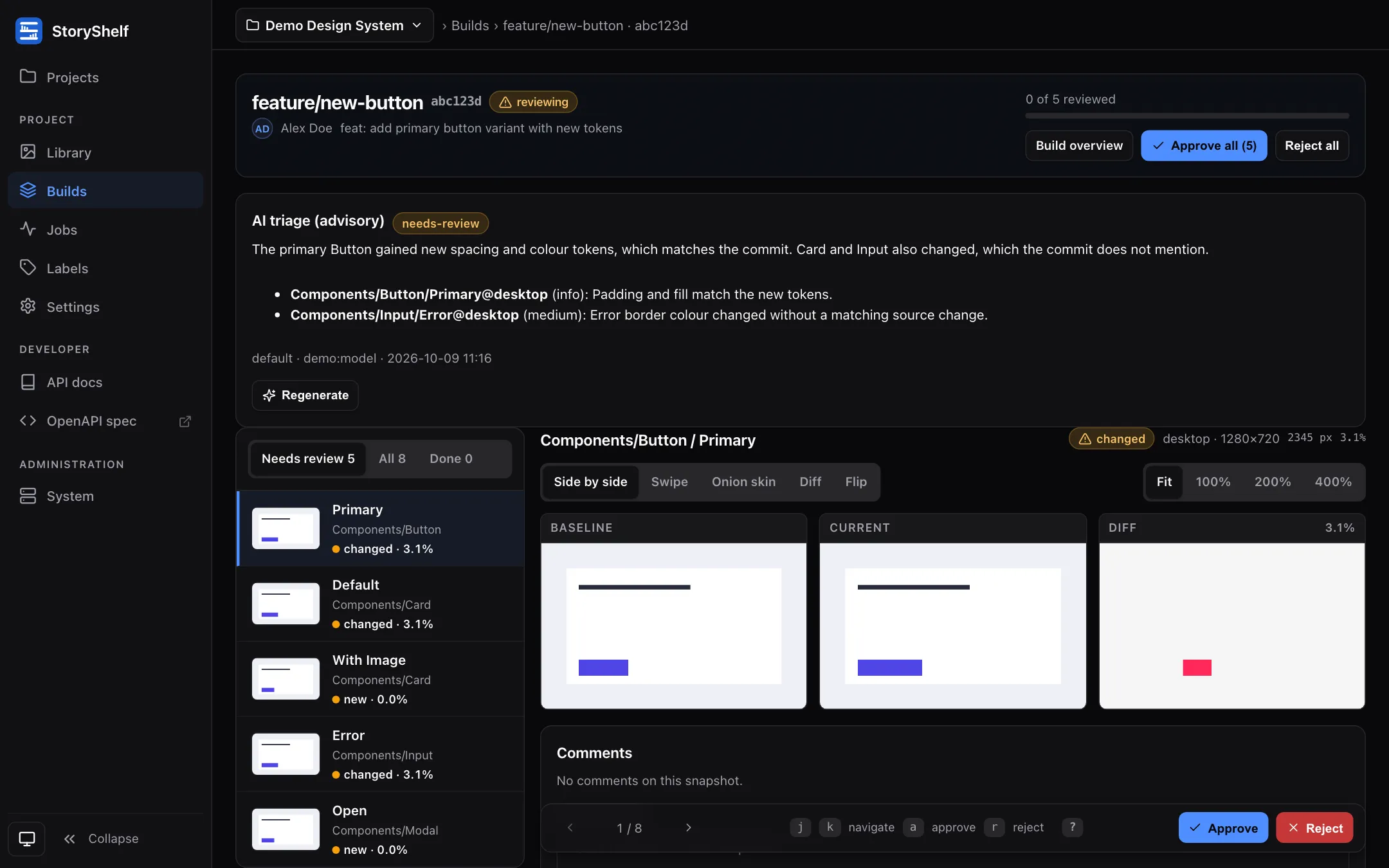
When every change is decided, the build’s status check goes green and you can merge.
Next steps
Section titled “Next steps”- Review workflow: comparison modes, shortcuts, and bulk actions.
- CI setup and the merge gate: make the check required.
- Project settings: thresholds, viewports, labels, members and tokens.
- Deployment: take the server beyond localhost.